
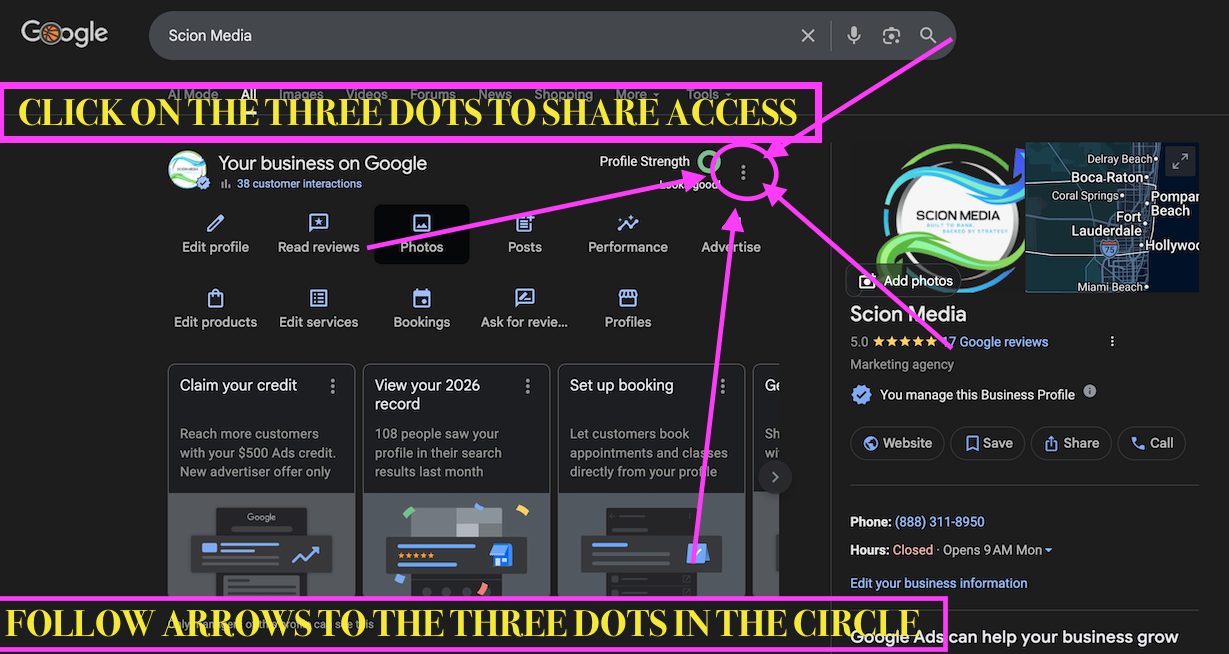
Click the three dots to share access
In the "Your business on Google" panel, click the three-dot menu (⋮) near the top-right. This opens the profile options.
A quick walkthrough to add our team as a manager on your Google Business Profile — so we can keep posting, responding to reviews, and optimizing on your behalf.
Make sure you're signed into Google with the account that owns your Business Profile. If you manage multiple accounts, double-check the avatar in the top-right.
Search your business name on Google Search (not Maps). The "Your business on Google" panel will appear at the top of the results.
Each step has an annotated screenshot so you know exactly what to click. If anything looks different on your screen, scroll to the bottom and give us a call — happy to screen-share.
In the "Your business on Google" panel, click the three-dot menu (⋮) near the top-right. This opens the profile options.
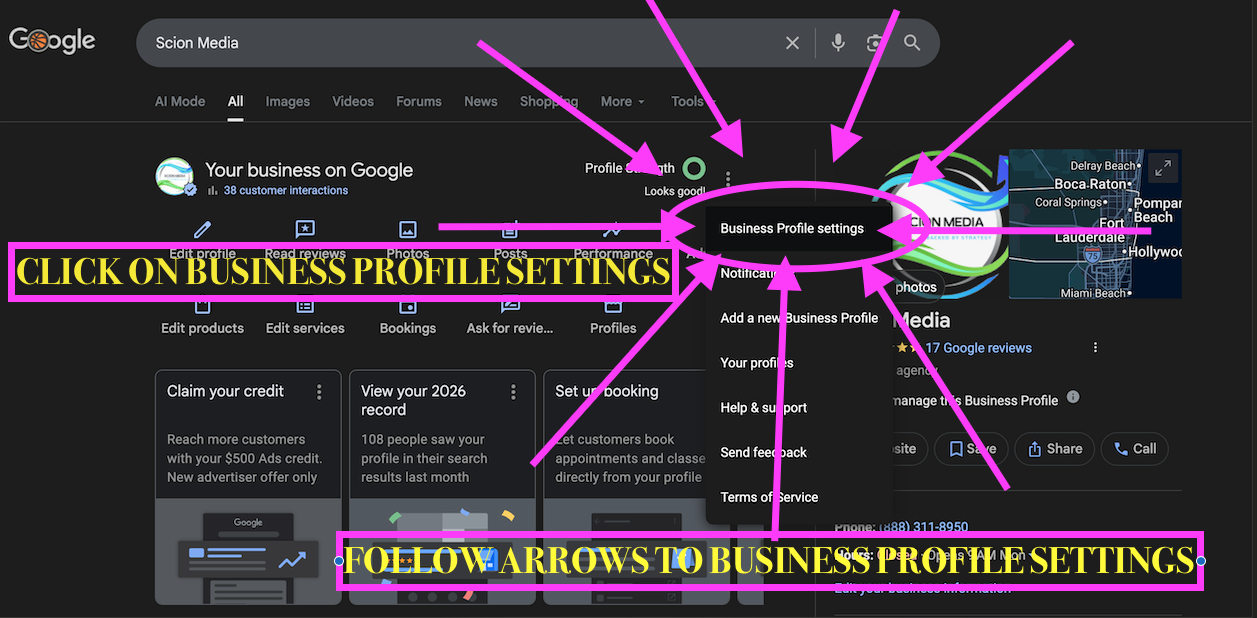
A dropdown menu appears. Click Business Profile settings — the first item in the list.
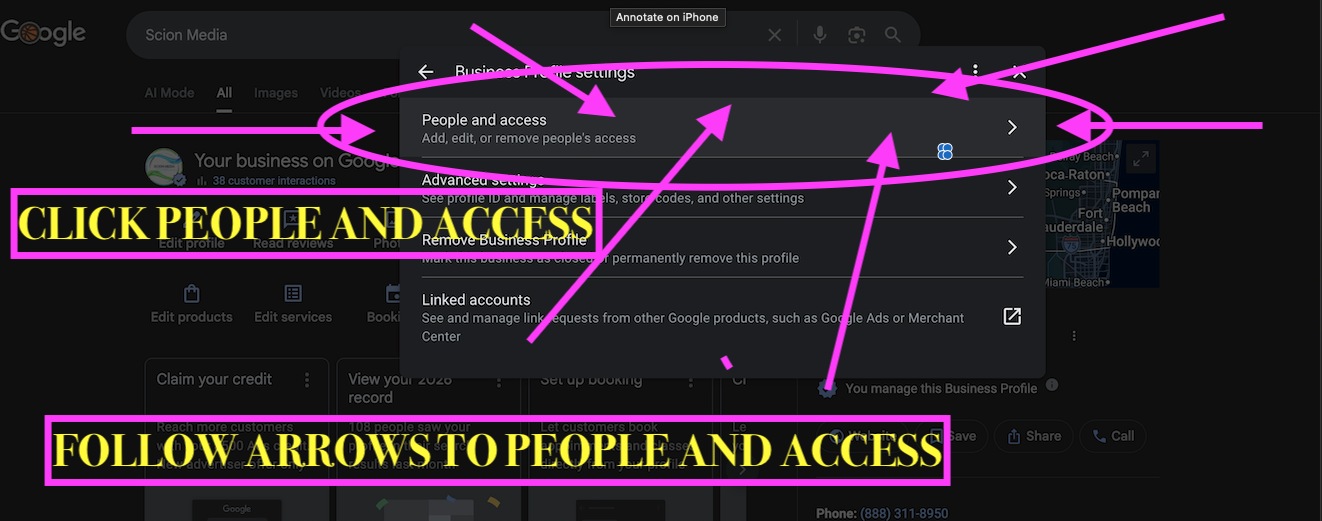
Inside the settings panel, click People and access — the first row. On the next screen, click the "+ Add" button in the top-right to open the "Add person" dialog.
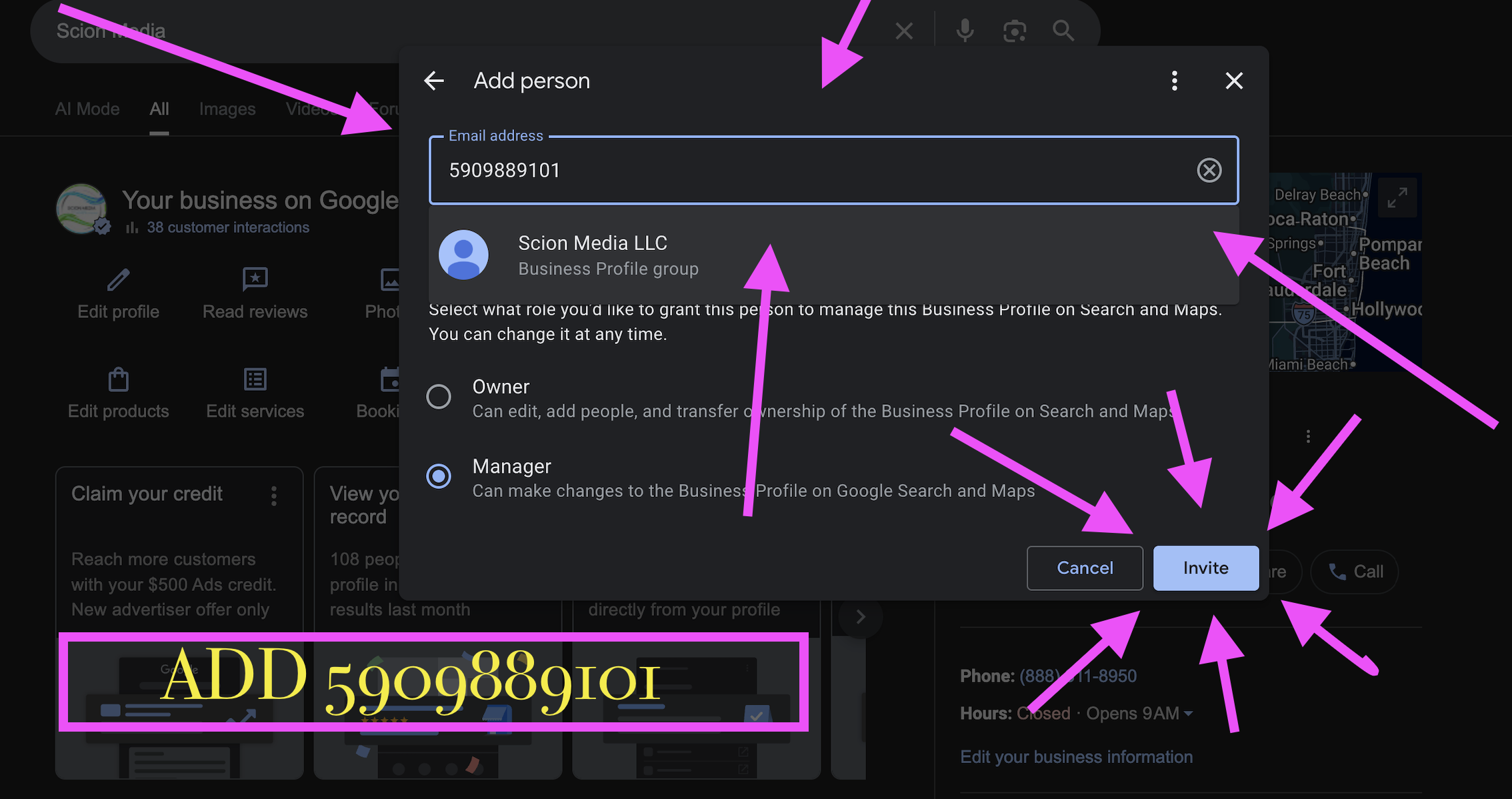
In the "Email address" field, paste our Group ID 5909889101. Google will show a suggestion: "Scion Media LLC — Business Profile group". Click that suggestion, leave the role set to Manager, and hit Invite.
Adding our team as a manager doesn't change your ownership, your data, or your public listing. You can remove us at any time.
Our team is added as a manager. You keep full ownership and can remove us in two clicks, any time.
Your profile stays live throughout. No re-verification, no data loss, no change to the public information customers see.
Once you hit Invite, our team accepts on our side and kicks off your onboarding the same business day.
Reply to the email that brought you here, or give us a call — we'll jump on a quick screen-share and handle it together in five minutes.