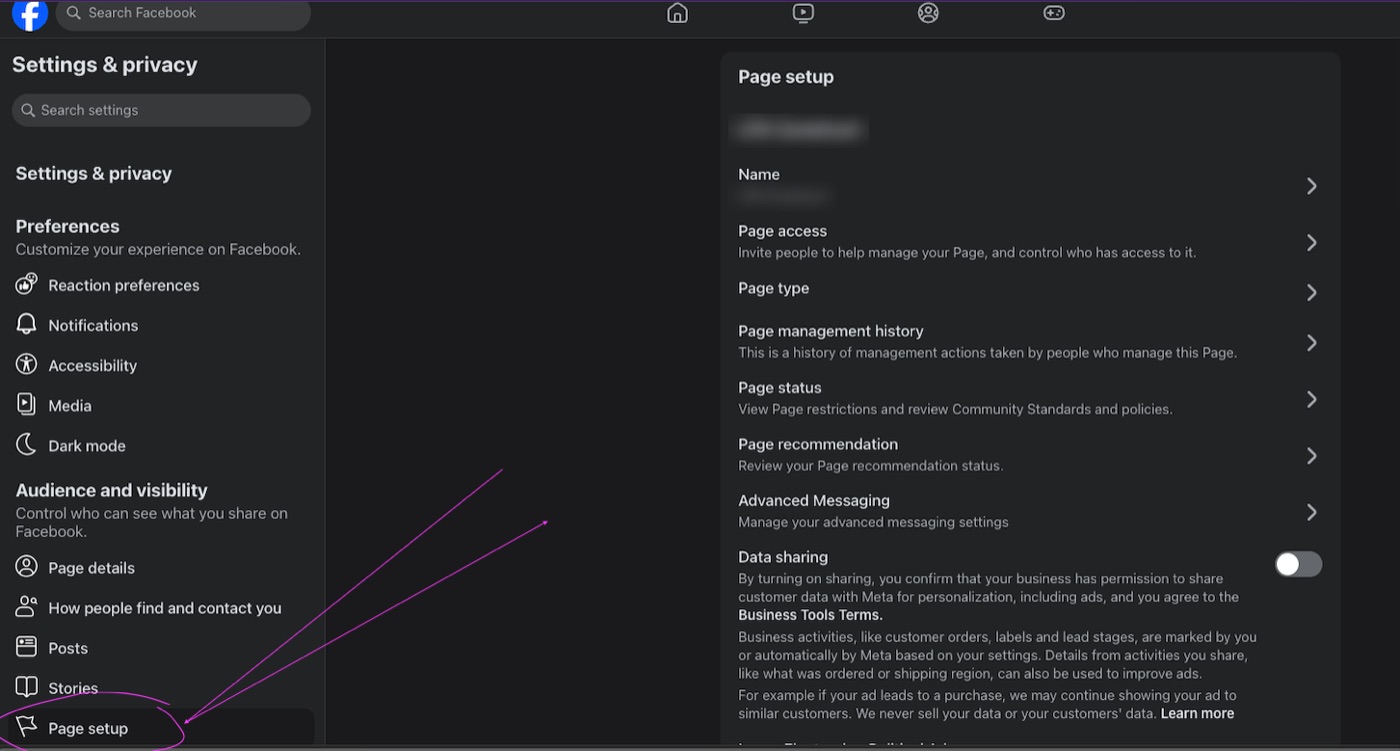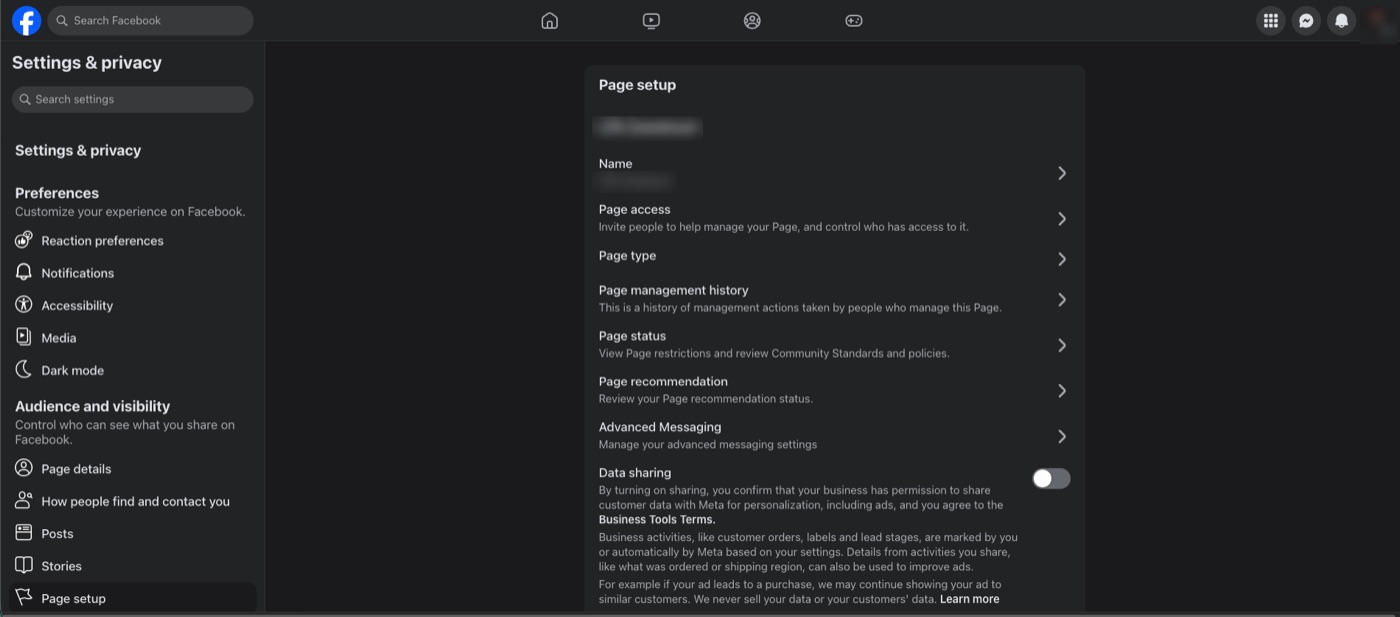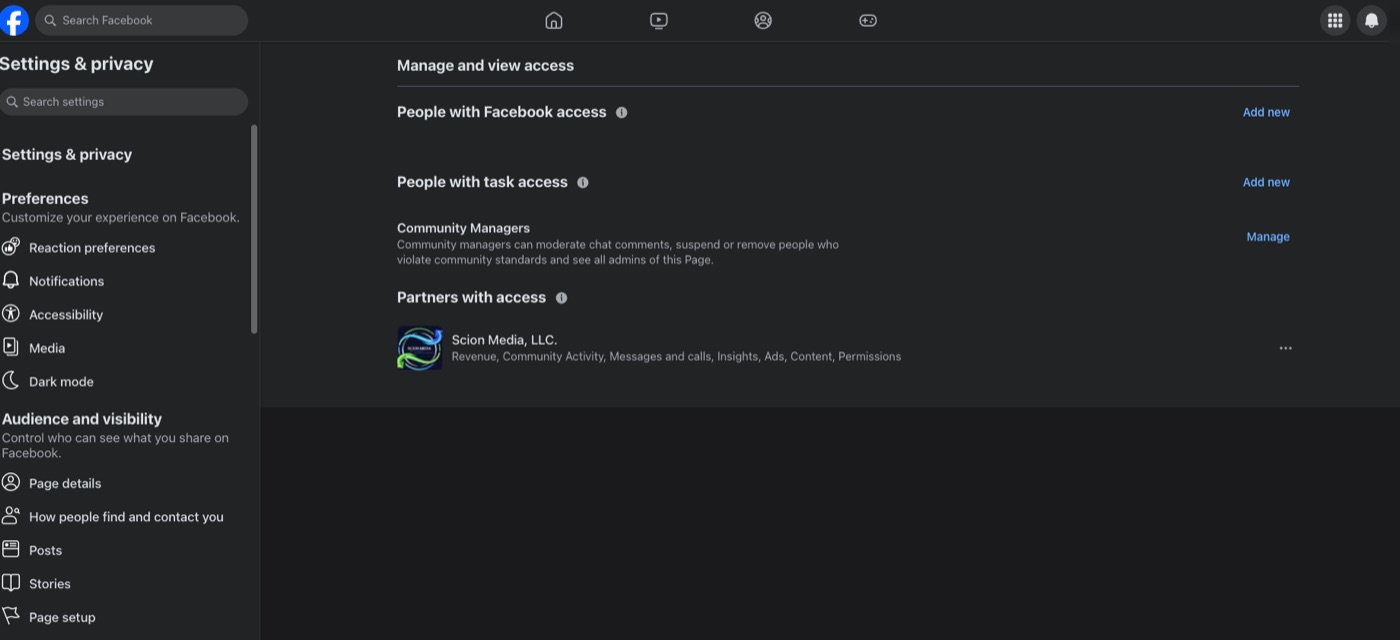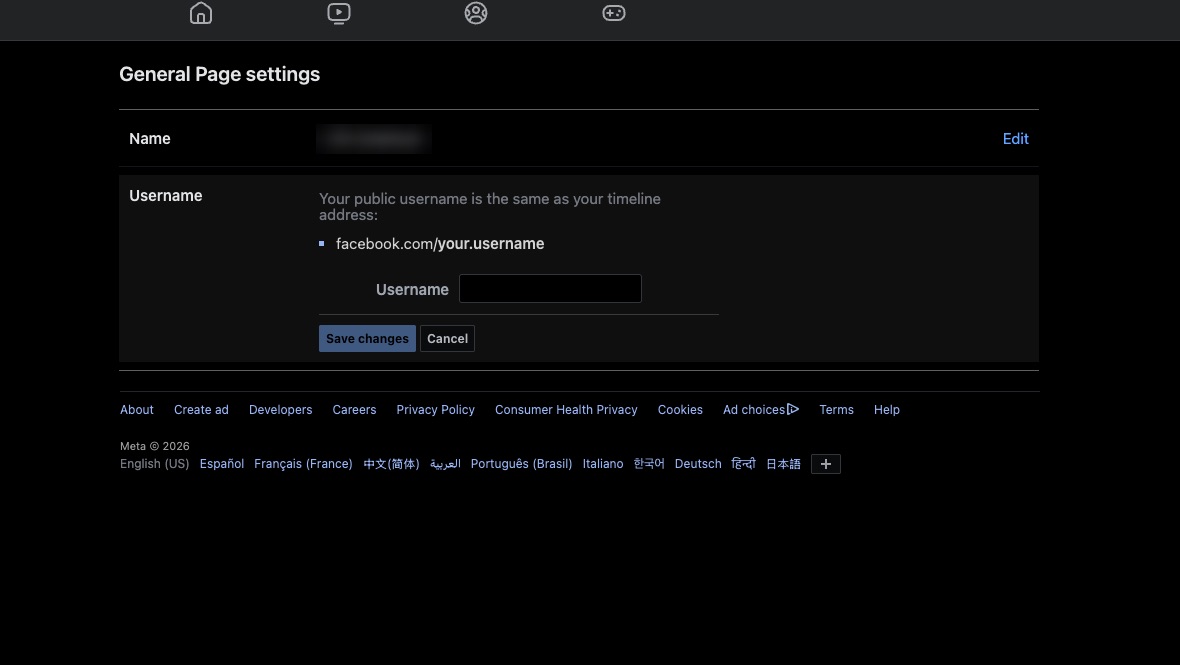
Open Business Settings
Go to business.facebook.com and click the gear icon (Settings) in the bottom-left menu to open Business Settings.
A quick walkthrough to add our agency as a partner on your Facebook Page — so we can post, respond to messages & comments, and run your page on your behalf. Access is shared to Scion Media's business, never a personal account.
Make sure you're signed into the Facebook account that manages your Page. If you run multiple accounts, double-check the profile in the top-right.
Go to business.facebook.com and open Business Settings (the gear icon). Don't have a Business account yet? No problem — call us and we'll set it up together.
This shares your Page with our agency as a partner — you stay the owner the whole time. If anything looks different on your screen, scroll to the bottom and give us a call — happy to screen-share.
Go to business.facebook.com and click the gear icon (Settings) in the bottom-left menu to open Business Settings.
In the left menu under Users, click Partners. Then click the blue "Add" button and choose "Give a partner access to your assets."
In the box, paste our Business ID 1505961754179508. Facebook will confirm it as "Scion Media LLC". Click Next.
Select your Facebook Page (and your Instagram account if it's connected), turn on Full control (or Manage), then click Save changes. We'll accept on our end and start the same business day.
Adding us as a partner doesn't change your ownership of your Page or your data. You can remove us at any time, in two clicks.
We're added as a partner — you keep full ownership of your Page and can remove our access any time.
Partner access ties to our agency's business account — never one employee's personal profile. Clean, professional, and easy to manage.
Once you hit Save, our team accepts the partner request on our side and kicks off your onboarding the same business day.
Reply to the email that brought you here, or give us a call — we'll jump on a quick screen-share and handle it together in five minutes.