
Go to business.google.com
On your computer, open business.google.com. This is Google's Business Profile dashboard — where you manage your listing.
The fastest path to getting your Google listing live — most approvals come back in 24–48 hours. Watch Google's own tutorial, follow the 6 steps below, and you'll be verified without a postcard.
Record at your actual business address or primary service location. Don't drive during the video.
You'll record on your phone after scanning a QR code from your computer. One continuous take.
Business license, utility bill, or an invoice. Plus branded items — vehicle, tools, uniform, business cards.
Each step has the exact screen you'll see. If anything looks different or you get stuck, scroll to the bottom and give us a call — we'll screen-share and knock it out with you.
On your computer, open business.google.com. This is Google's Business Profile dashboard — where you manage your listing.
Sign in with the Google account that owns your Business Profile (usually the Gmail or Google Workspace email tied to the business).
You'll see a notice that your business isn't visible to customers yet, with a blue Get verified button. Click it to start the verification flow.
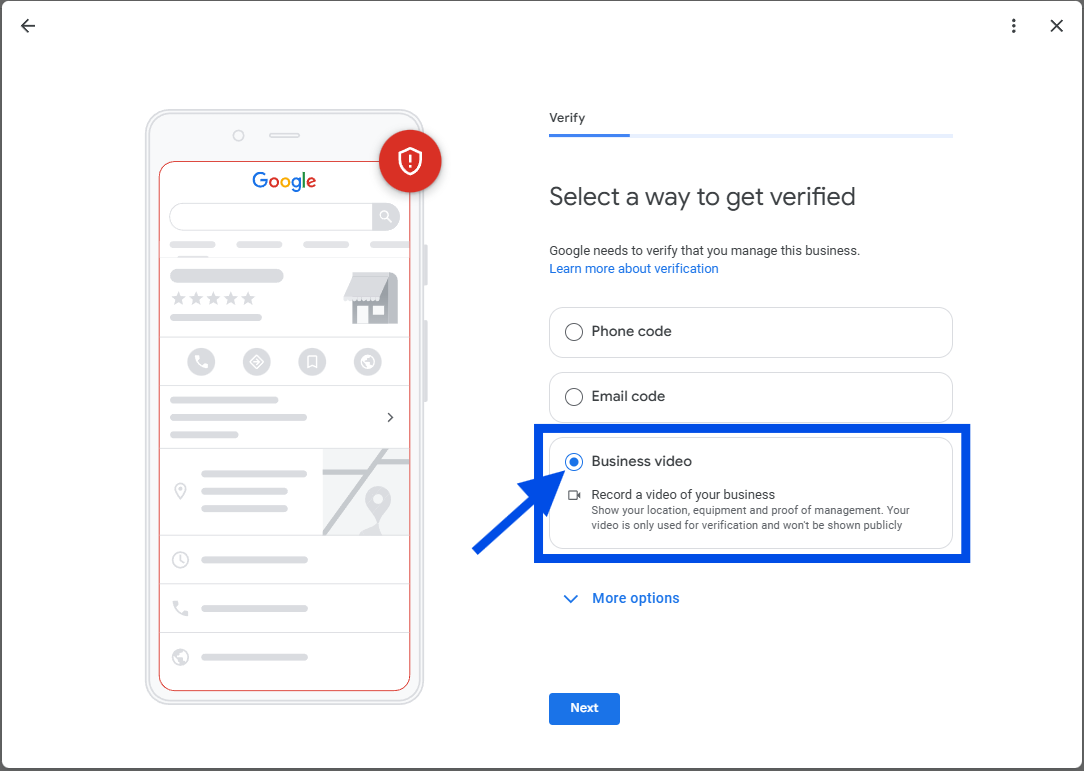
Google will ask how you want to verify. Choose the Business video option (not Phone code or Email code). Click Next.
Before you hit record, plan the shot. Your video needs to cover these three things in one unbroken take under 2 minutes:
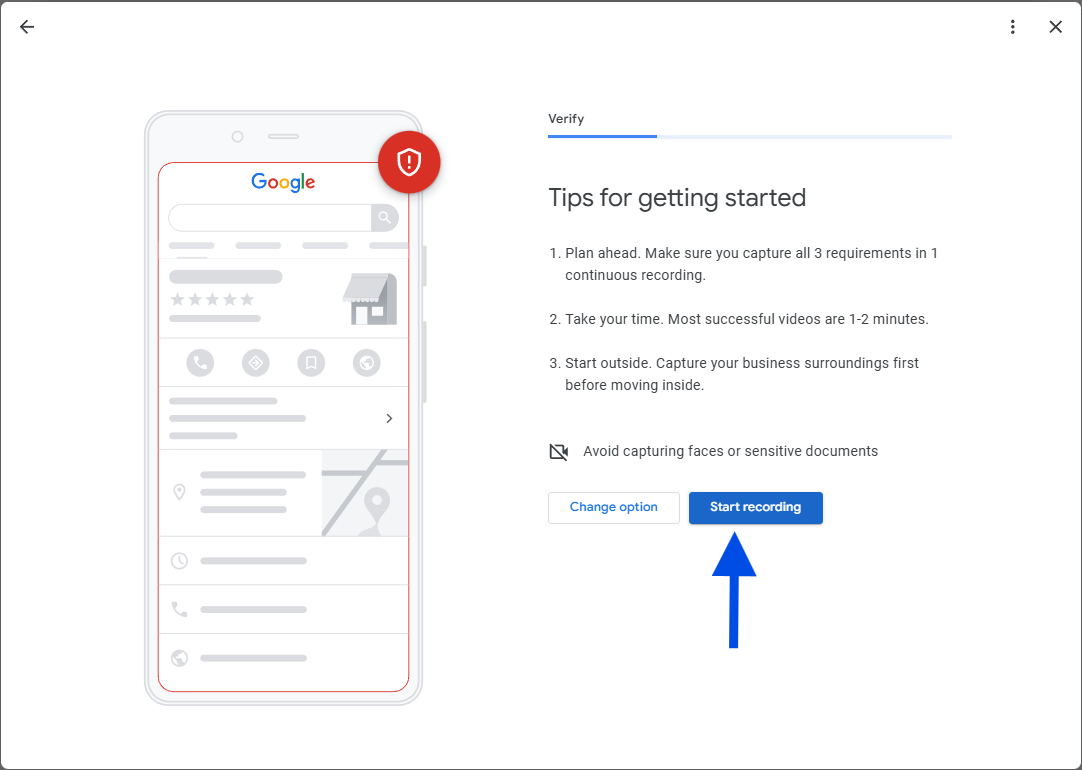
Click Start recording. A QR code appears on your computer. Open your phone's camera, point it at the code, and tap the link — your phone takes over as the recording device. Film the three proofs in one continuous take, stop, and tap Submit. Google usually responds in 24–48 hours.
Google's reviewers look for specific things — and reject videos that break a short list of rules. Stick to this and you're good.
Video verification is private. It's only used to confirm your business is real — never shown on your listing, never shared publicly.
Your video is used only for verification review. It never appears on your listing and isn't shared with anyone outside Google's verification team.
Google typically gets back within two business days. You'll get a verification email the moment it's approved — nothing else for you to do in the meantime.
Stuck on any step? Call us and we'll hop on a quick screen-share. We've walked hundreds of clients through this — takes about 5 minutes with us on the line.
Reply to the email that brought you here, or give us a call — we'll jump on a quick screen-share and walk through it together in five minutes.